Installing the Windows App
Sync is a tiny Windows app made use of by the following mobile apps:
- Sync for iTunes
- Send To PC
- Send From PC
- PC Keyboard
- Open on Tablet
- Open on Phone
<< Click here to install >>
Once you have started setup.exe, you will likely be greeted with a window such as:
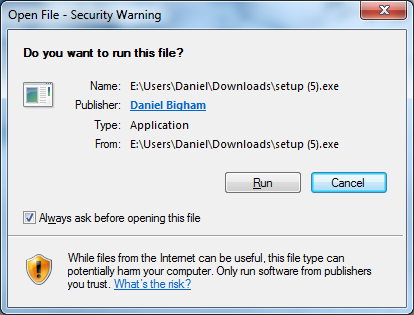
Click "Run".
When you click run, you should see:
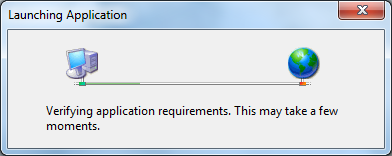
... followed by:
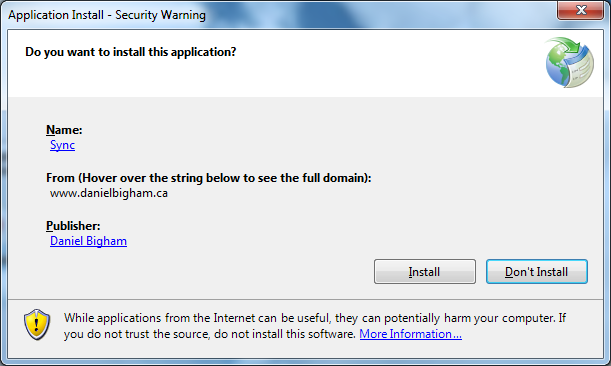
To proceed with installation, click "Install".
The first time Sync runs, you will probably see a prompt such as:
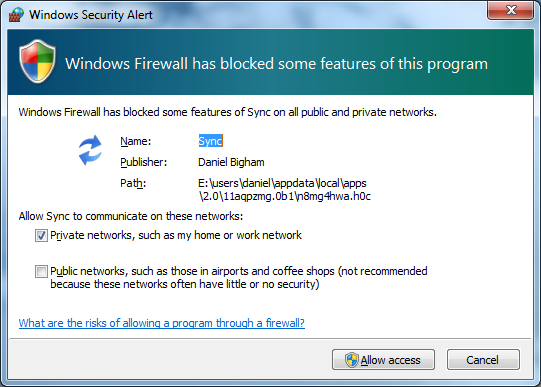
Depending on your Wi-Fi network settings, the check box that is checked by default may vary. Typically you should leave the default check boxes checked, or check both of them. Click "Allow access" to allow your PlayBook to talk to your PC over your Wi-Fi network.
That's it! Sync should be running in your Windows tray, at the bottom right of your screen nearby your volume icon. The first time you install it, it should be plainly visible:

Shorly thereafter, you will likely need to click the "up arrow" to see the Sync tray icon:
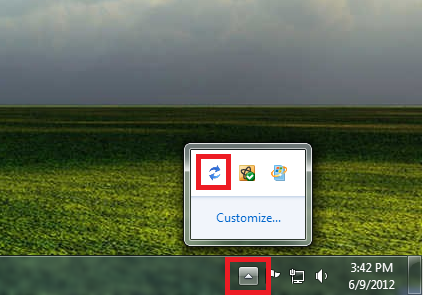
Now that you have confirmed that the Windows app has installed, you can go ahead and use the mobile app. As mentioned above, the following mobile apps may now be used:
- Sync for iTunes
- Send To PC
- Send From PC
- PC Keyboard
- Open on Tablet
- Open on Phone
Enjoy!